Loading
Guide · Talks and workshops
How to run a giveaway at your talk
Everyone who checks in at your talk or workshop is entered in a prize draw. Here’s how to set it up, draw winners on the projector, and what to do if a winner has already left.
How it works
Check in to enter the draw
A giveaway runs at a one-off session: a single talk or workshop. People scan the QR code and type their name and email to check in, and checking in enters them in the draw. When it’s time for prizes, you open the giveaway on the projector, and Presently picks winners at random from the people who checked in. Nobody wins twice.
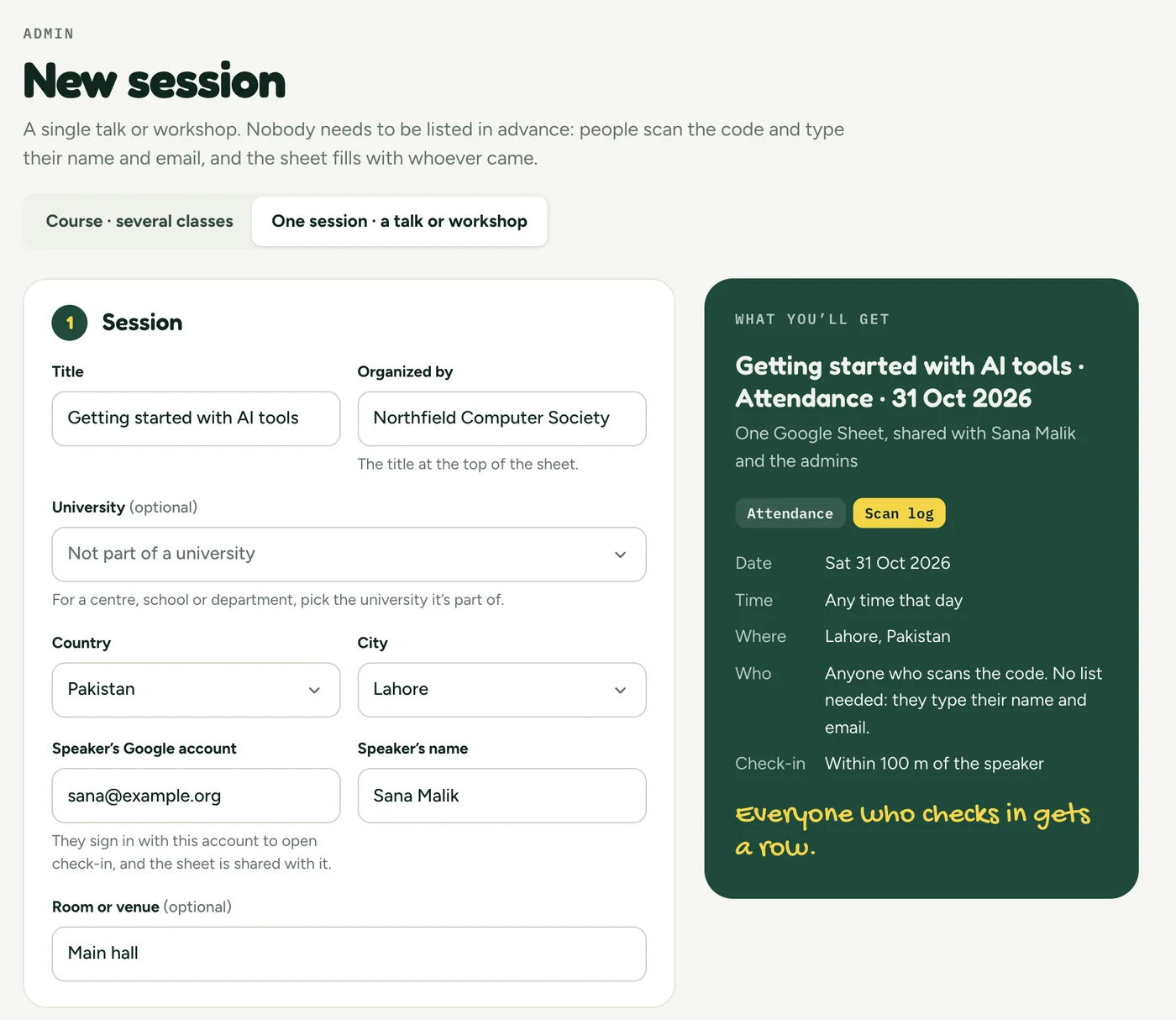
The screens are from Presently, with a made-up talk: Getting started with AI tools, given by Sana Malik for Northfield Computer Society.
Before the talk
Create a one-off session
In Presently, press New cohort, then One session · a talk or workshop. Give it a title, the date and the room. You don’t need a list of names: people type their own when they check in.
Good to know
Leave the location check on. Then only people within 100 m of you can check in, so someone at home can’t enter the draw, even if a friend sends them the code.
When people arrive
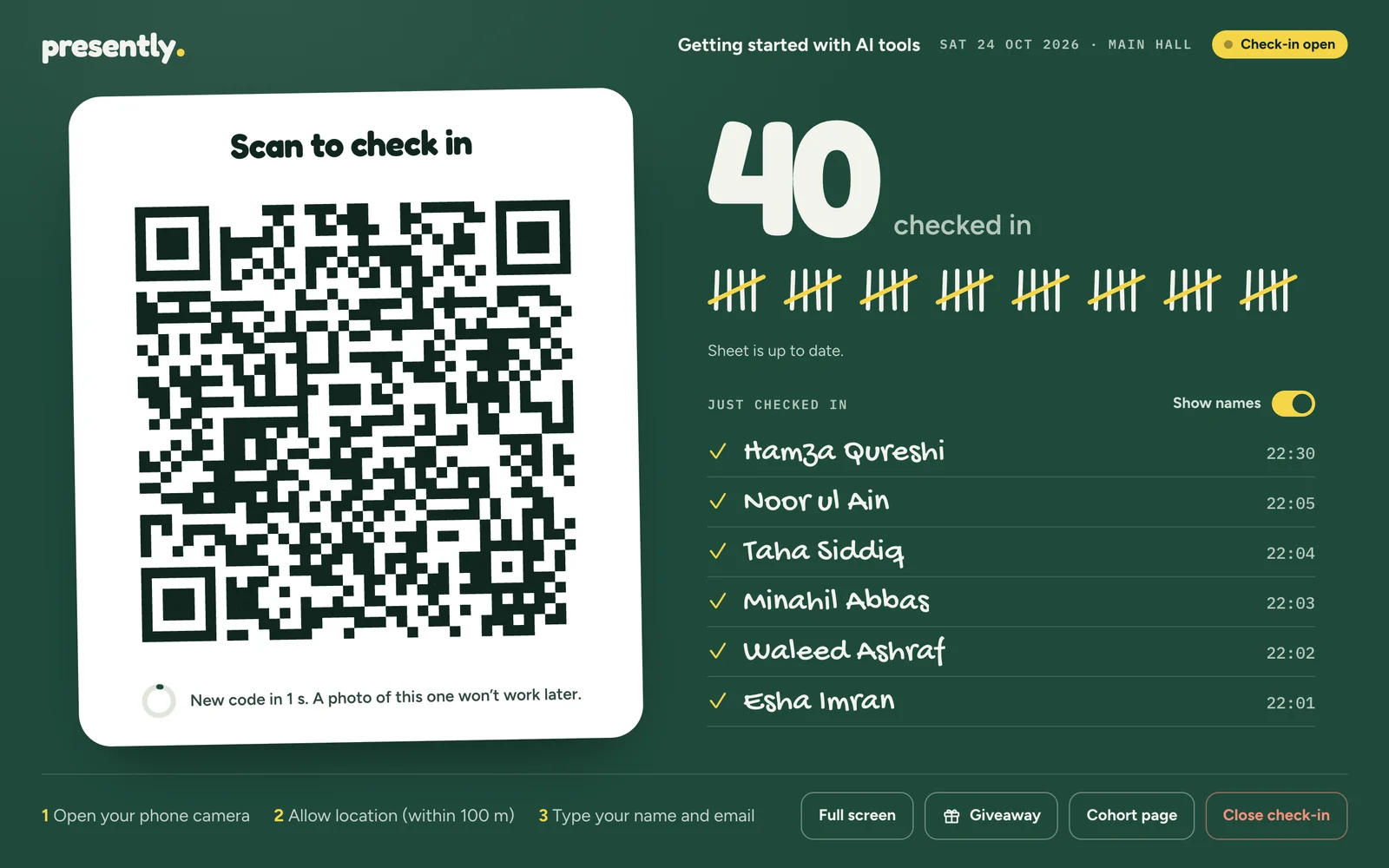
Show the QR code
On the day, open the session and press Open check-in. Presently notes where you are, then shows the QR code. Put it on the projector and tell the room that checking in enters them in the draw.
Good to know
Mention the prizes early: more people check in when they know there’s a draw. Anyone who checks in before you press Draw is in it, so people who arrive late can still enter.
In the audience
Checking in from a phone
Each person scans the code with their phone’s camera, and the check-in page for your talk opens.
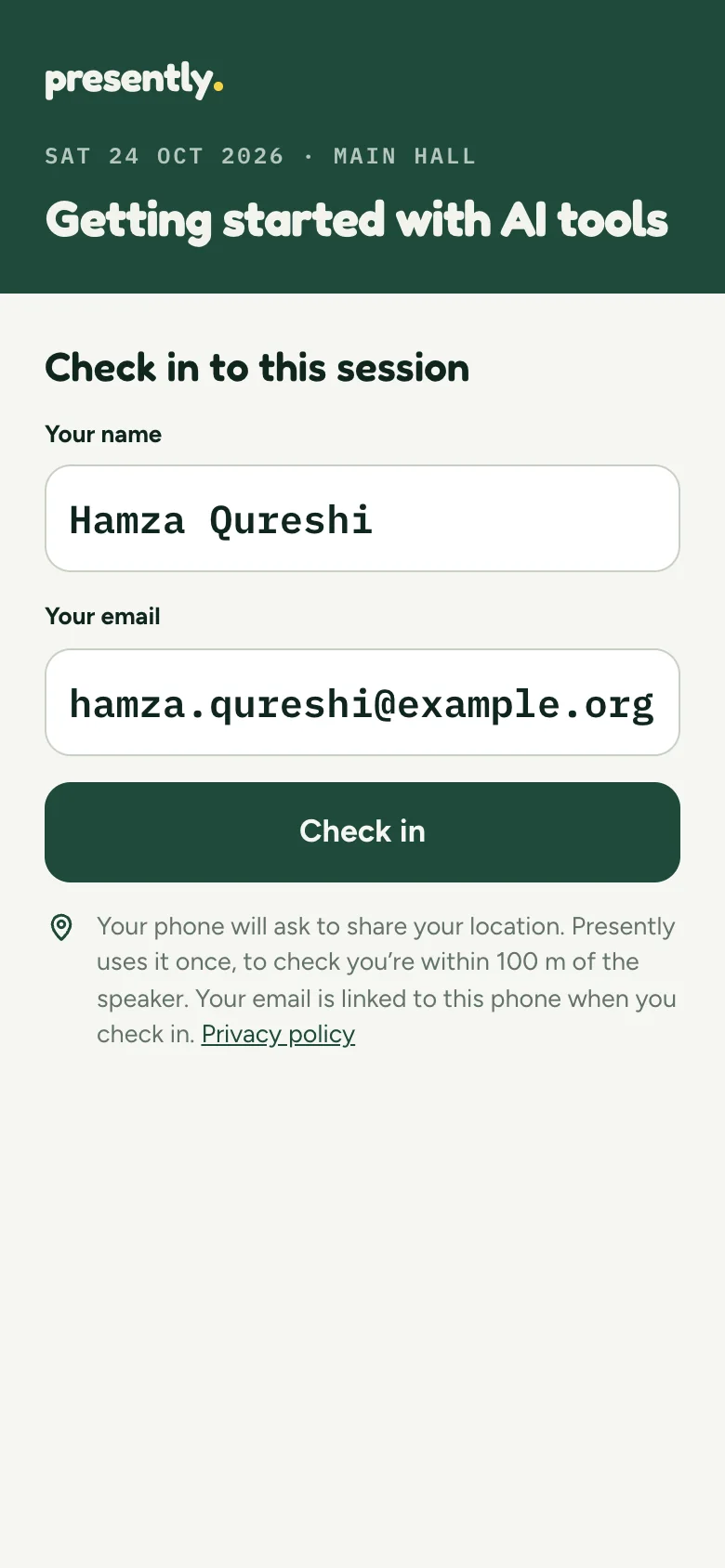
They type their name and email, and tap Check in.
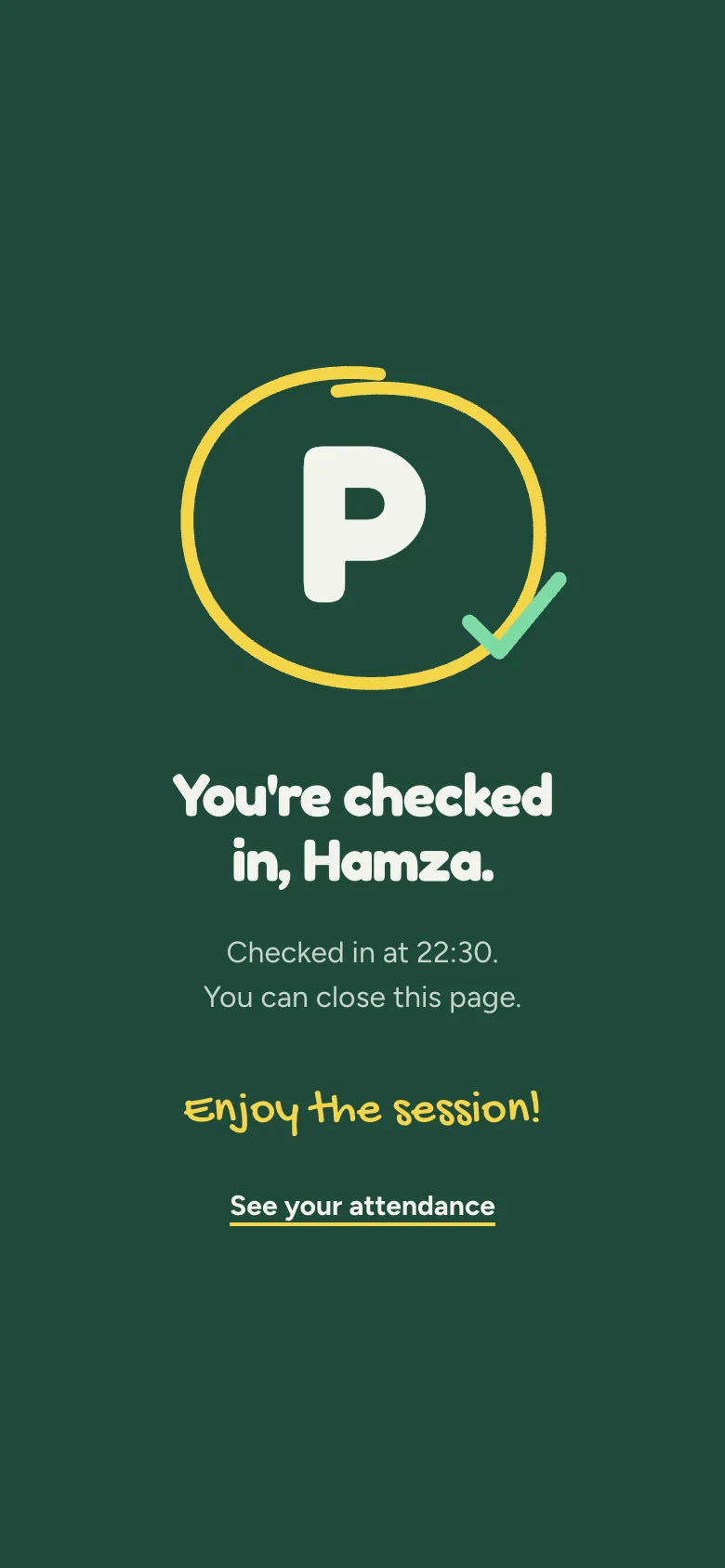
Their phone shares its location once. Within 100 m of you, they’re checked in, and in the draw.
What you can do
Each phone checks in one person, so nobody can enter a row of friends. If someone doesn’t have a phone with them, check them in yourself: on the session page, under Checked in, type their name and email and press Check in. They’re in the draw too.
Before the draw
Check the names
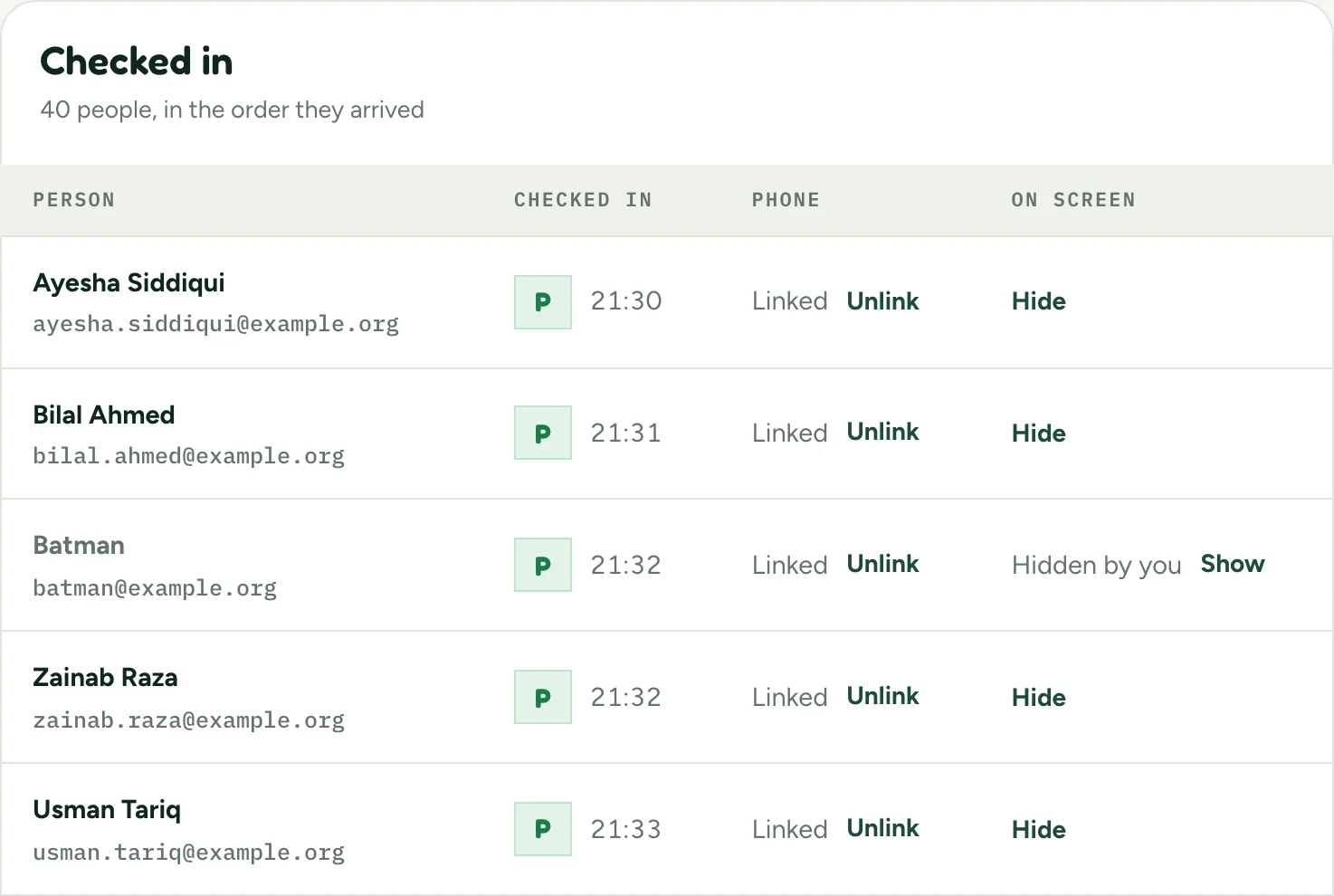
Any name in the draw can appear on the projector. Before you draw, look at the Checked in list on the session page. If someone has typed a joke name, press Hide next to it.
Good to know
Presently already turns away some names that clearly aren’t real when people check in. Hide is for anything that gets through.
Prize time
Draw the winners
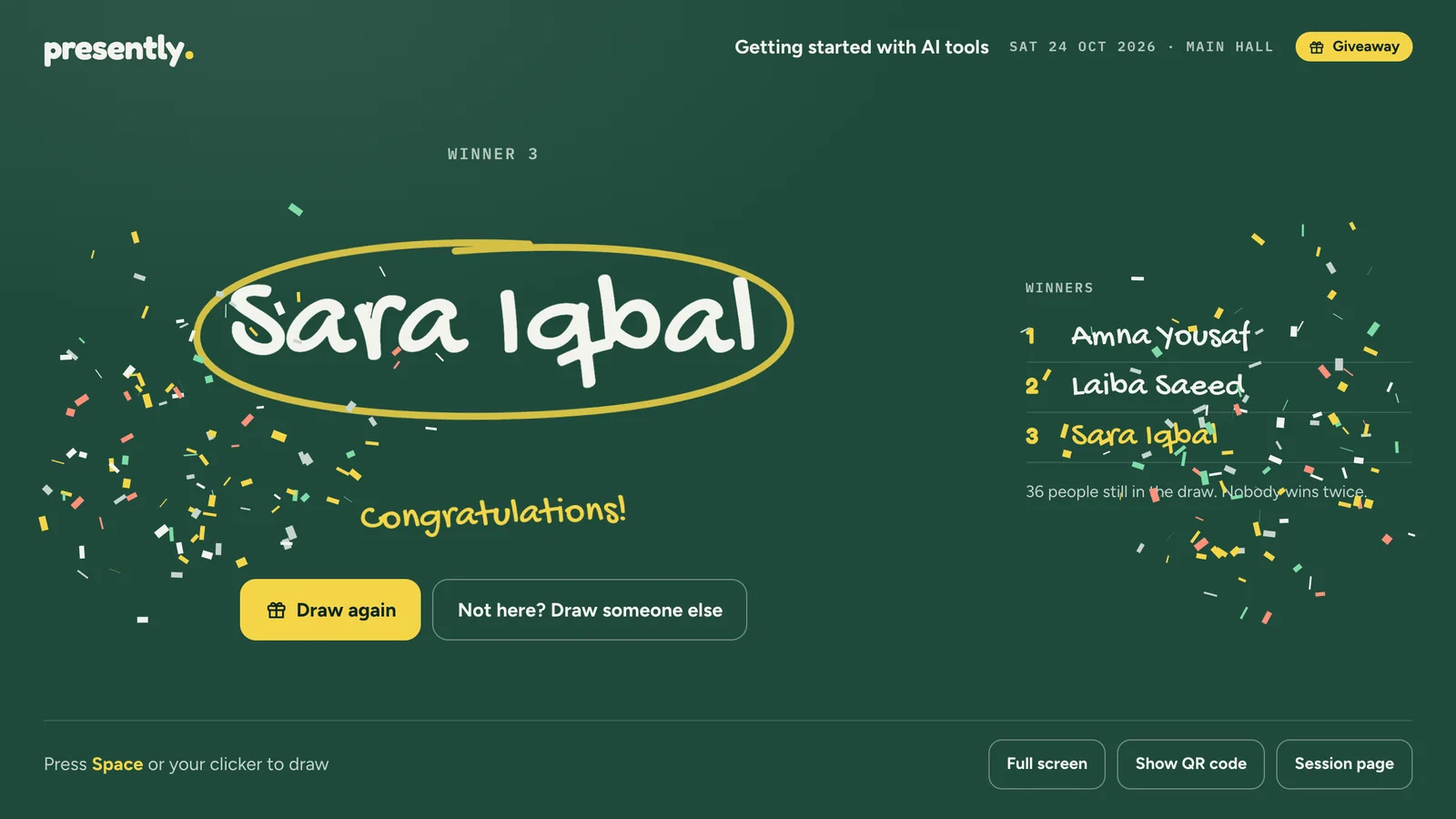
Press Giveaway at the bottom of the QR screen, or Open the giveaway on the session page. Press Full screen, then Draw a winner. The Space bar, or the next button on a presentation clicker, works too.

Good to know
Presently picks the winner at random as soon as you press the button, before the names start moving. The moving names are for the room to watch; they don’t change who wins. Nobody wins twice, even if the giveaway is open on two screens.
Winner not in the room
If a winner has already left
Press Not here? Draw someone else, under the winner’s name. Presently draws again straight away. The person who wasn’t there stays out of the draw and isn’t listed as a winner.
After the talk
Find your winners
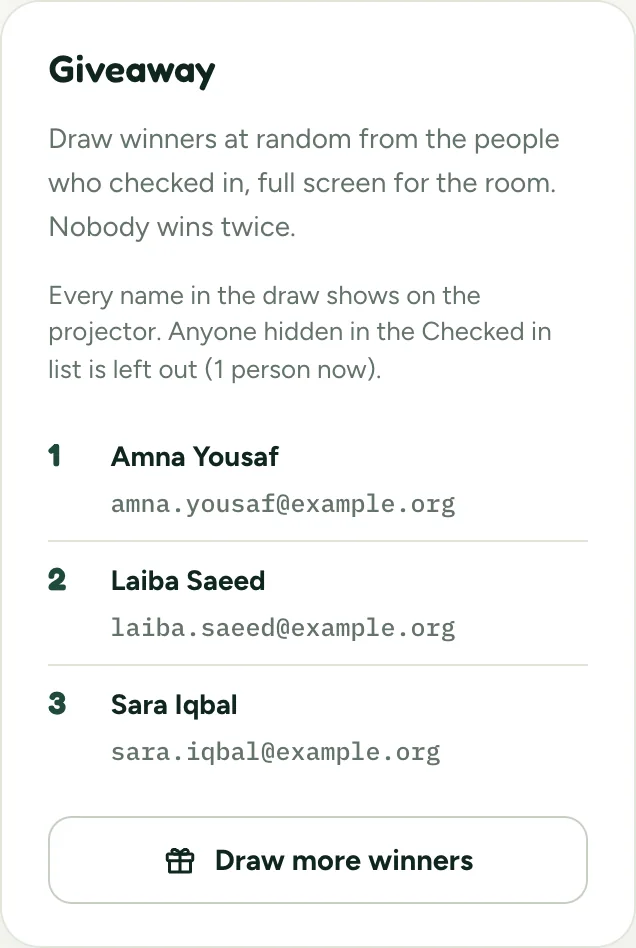
The Giveaway card on the session page lists the winners in the order they were drawn, with their emails. Use it to send a prize to anyone who couldn’t collect theirs.
Good to know
Winners aren’t written to the Google Sheet. The sheet lists everyone who checked in, with their email and the time.
Questions
Who is in the draw?
Everyone who checked in to the session, apart from names you hid and people who have already been drawn.
Can someone win twice?
No. Once someone has been drawn, they’re out of the draw, even if the giveaway is open on two screens at once.
Can someone enter from outside the room?
Not with the location check on. They have to be within 100 m of where you opened check-in, or the distance you set. The QR code also changes every 30 seconds, so a photo of it stops working.
Can I choose the winner?
No. Presently picks each winner at random. The moving names on screen don’t change who wins.
Can I draw after closing check-in?
Yes. Closing check-in stops new people from entering. You can open the giveaway from the session page and draw winners whenever you like.
Can I run a giveaway in a course?
No. Giveaways are for one-off sessions, where anyone can check in with their name and email. A course takes attendance from a list of students.
What if someone scans twice, or on a friend’s phone?
Scanning again on the same phone tells them they’re already checked in, and they’re still in the draw only once. A phone that has checked someone in can’t check in anyone else. What students see when they check in again shows the screens.
Planning a talk?
Create a one-off session and show the QR code. Everyone who checks in is in the draw, and the sheet fills itself.