Loading
Guide · Checking in
What students see when they check in again
Each phone checks in one student. Here’s what a student sees when they scan a second time, use someone else’s phone, or try to check in a friend, and what you can do from your cohort page.
The rule
One phone, one student
The first time a student checks in, their phone is linked to their ID. After that, their phone checks in only them, and they check in only on their phone. That stops one person checking in friends who aren’t in class. Every situation below follows from it.
The screens are from Presently’s real check-in page, with a made-up class: Intro to Python, where Ayesha Siddiqui is PY-26-001 and Bilal Ahmed is PY-26-002.
Ayesha’s phone, in class
Checking in the first time
Ayesha scans the QR code on the classroom screen with her phone’s camera, and the check-in page for today’s class opens.
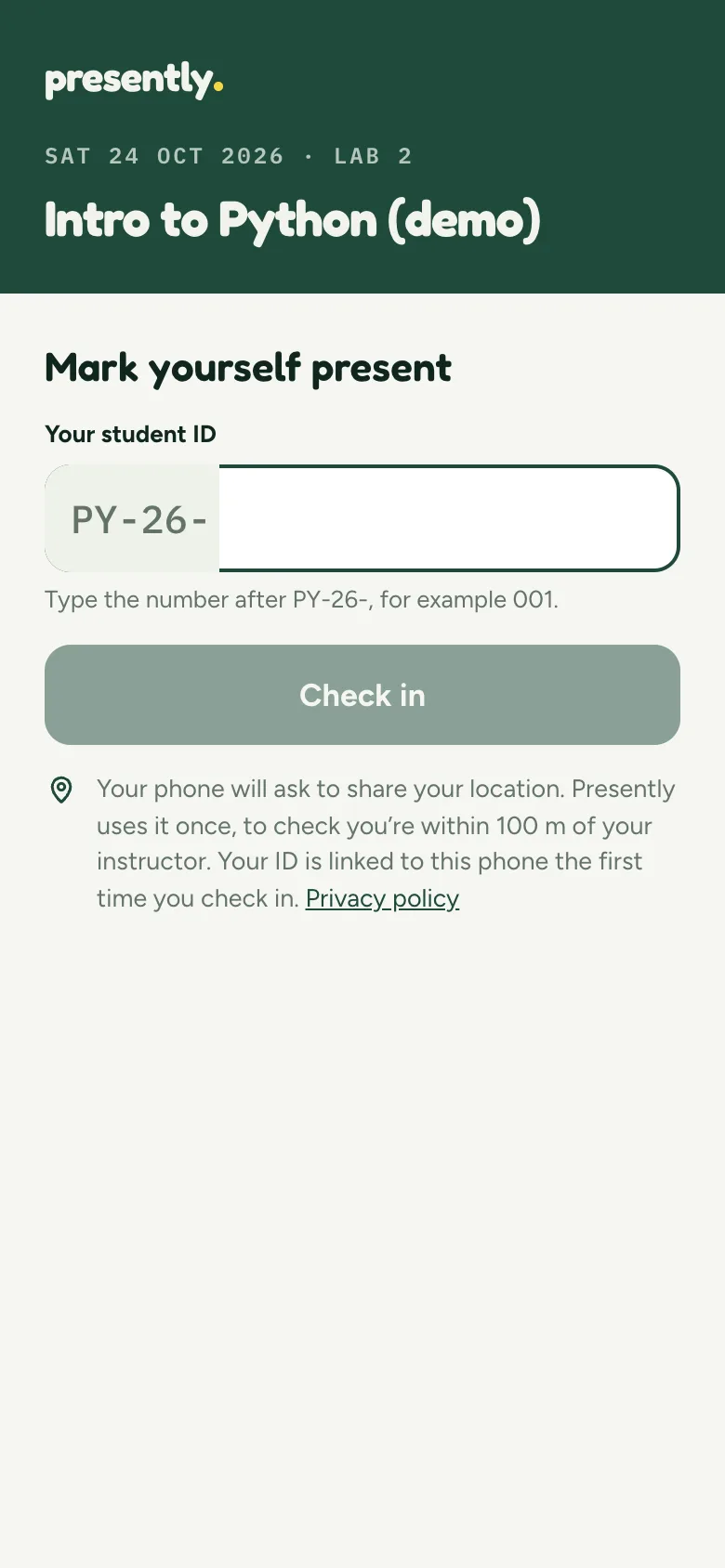
The page shows the class, and the part of the ID every student shares, PY-26-, is already filled in.
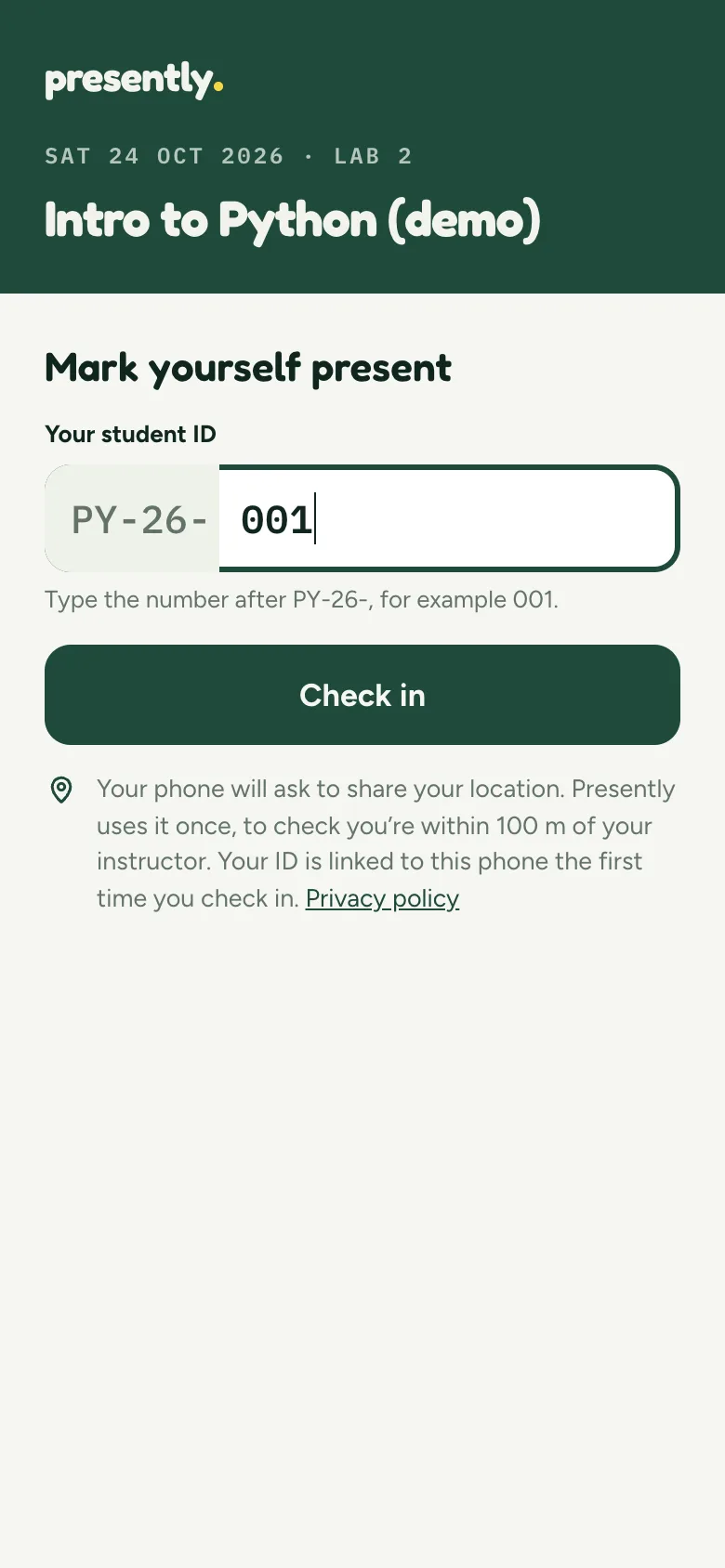
She types the rest of her ID, 001, and taps Check in.
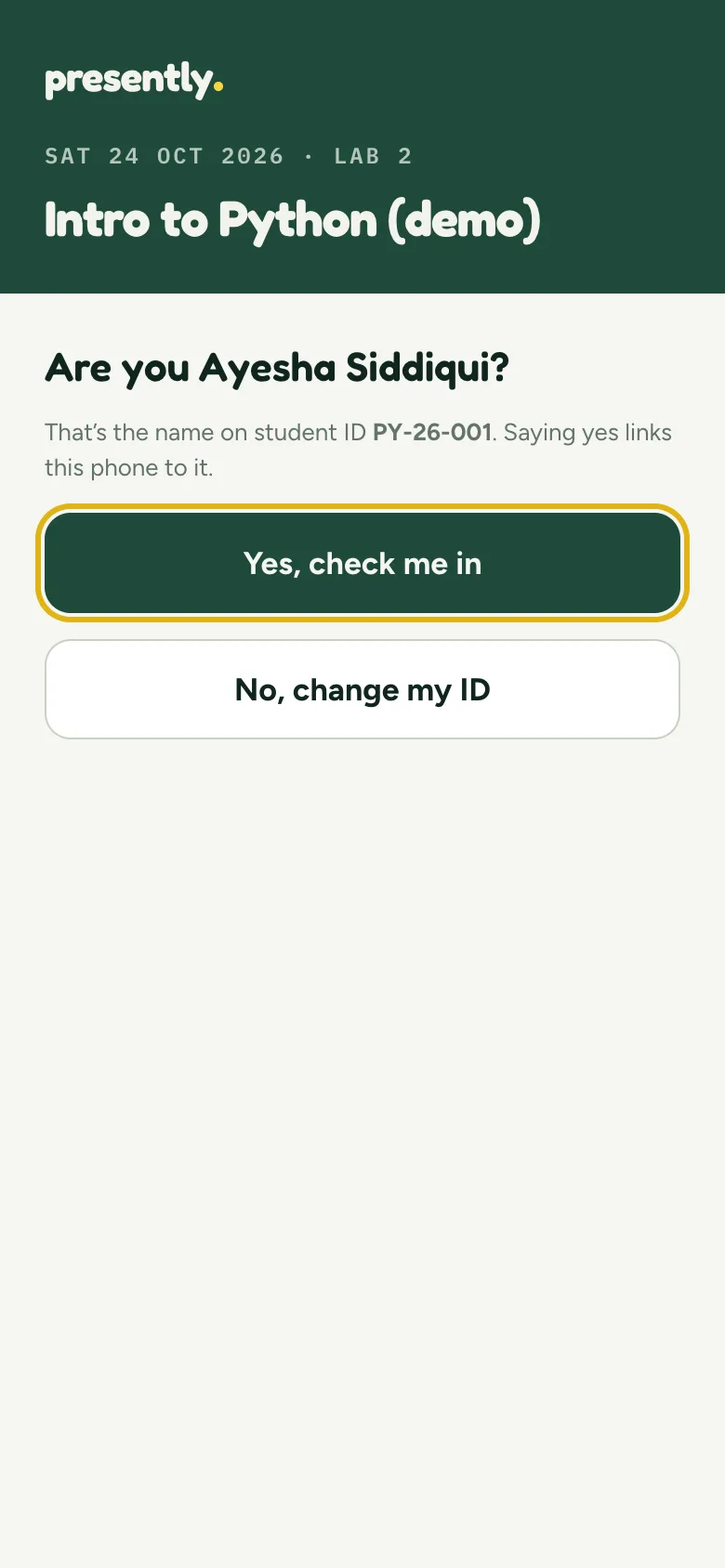
Her phone asks “Are you Ayesha Siddiqui?”, so a typo can’t mark someone else present. She taps Yes, check me in.

Her phone shares its location once. She’s within 100 m of the instructor, so she gets a P and the time.
Good to know
Saying yes linked Ayesha’s phone to her ID. From now on her phone checks in only her, and next class it skips “Are you …?”.
Ayesha’s phone, a few minutes later
Scanning a second time
Students often scan again to be sure it worked, sometimes after they’ve left the room. On the same phone, that’s always fine.
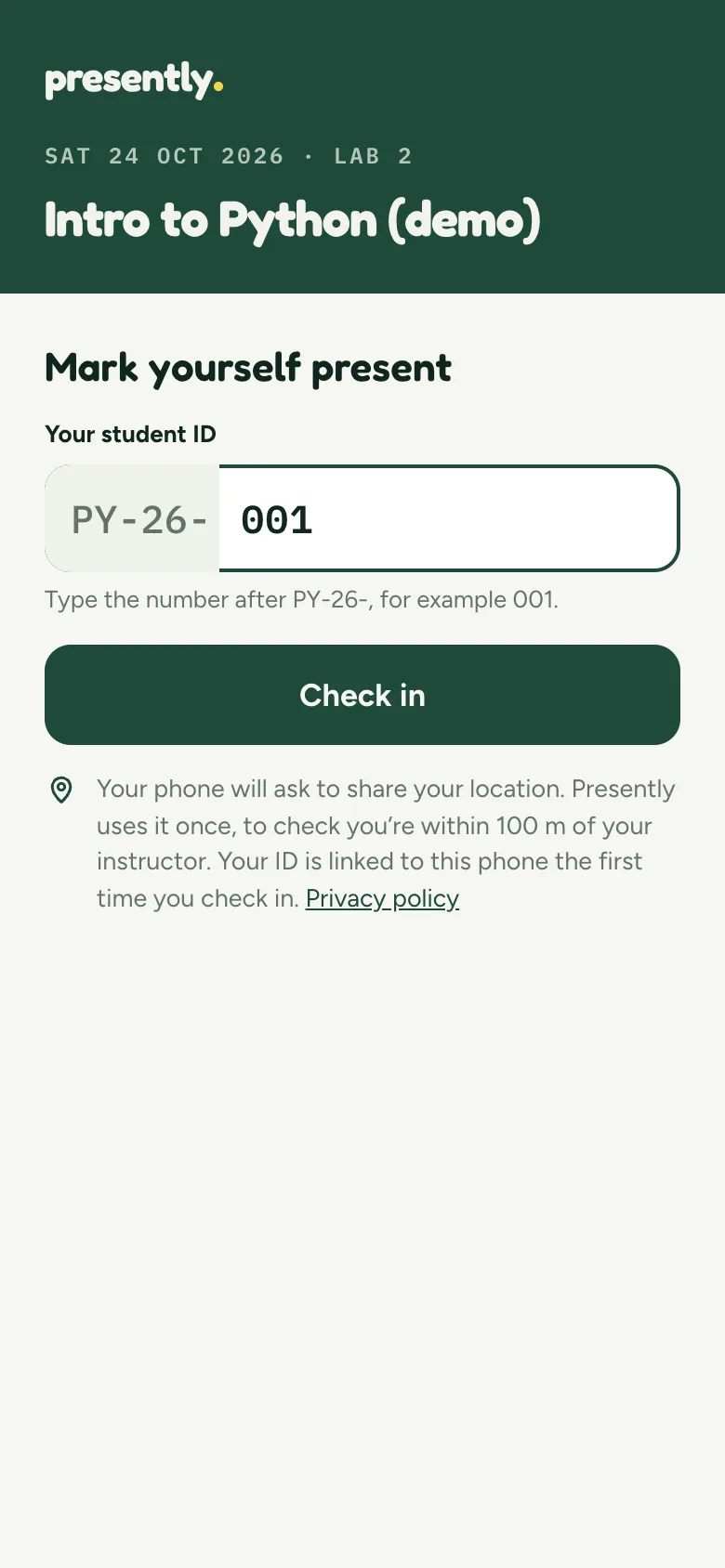
Her phone remembers her ID, so she only taps Check in.

She’s told she’s already present, and since when. Her location isn’t checked again, so she gets this answer wherever she is.
What you need to do
Nothing. Her P stays as it was, and the Scan log in your sheet gets one more row: Already marked present
.
Bilal’s phone
Using someone else’s phone
Ayesha’s battery is flat, so she borrows Bilal’s phone and types her ID. Her ID belongs to her own phone, so another phone can’t check her in.
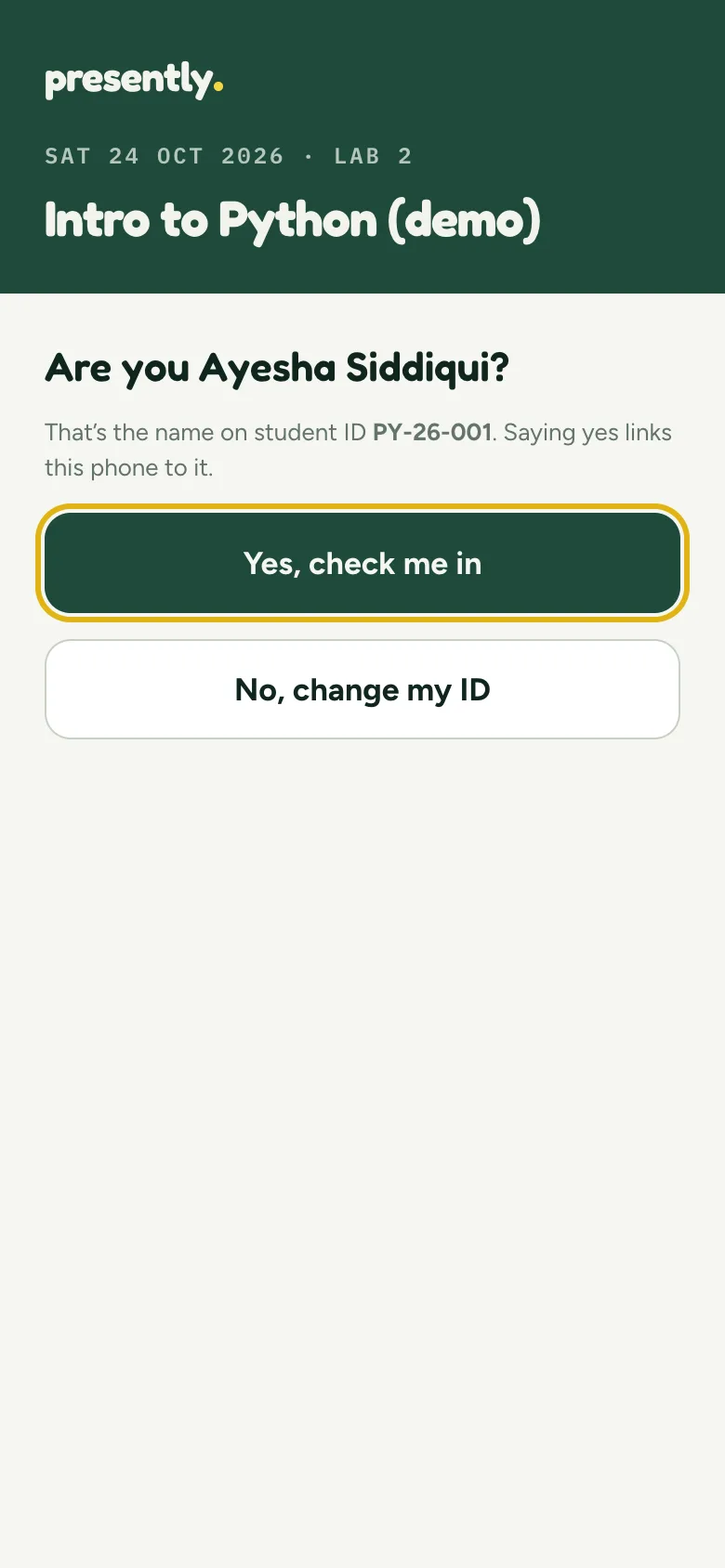
Typing 001 on Bilal’s phone still asks “Are you Ayesha Siddiqui?”.
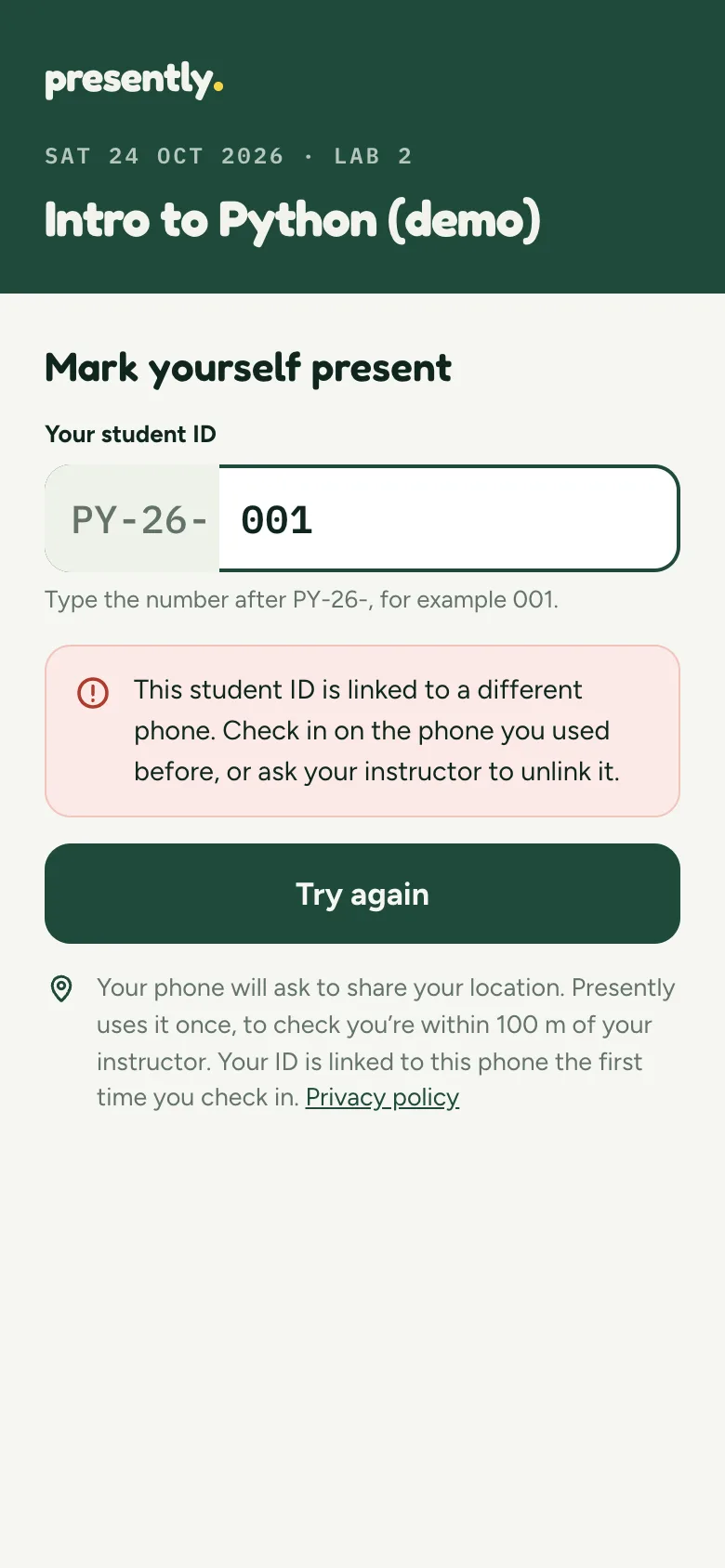
After Yes, it’s refused: her ID is linked to a different phone. Nothing is marked.
What you can do
If she can’t use her own phone today, tap Mark present next to her name on your cohort page. If she has a new phone for good, tap Unlink instead, and her next check-in links the new one.
Ayesha’s phone
Trying to check in a friend
Bilal is running late and asks Ayesha to check him in. Her phone already belongs to her, so one phone can’t check in a row of friends.
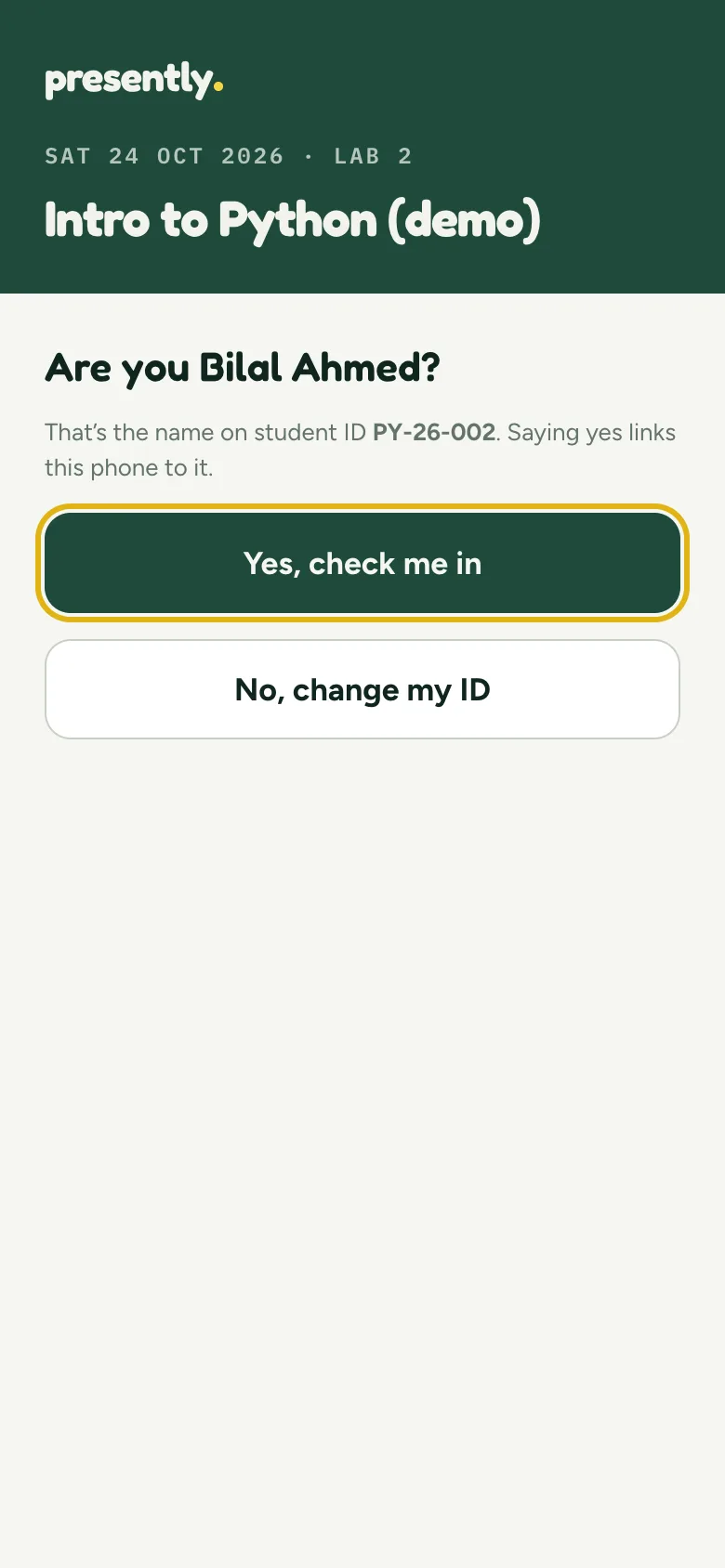
She types 002. Her phone asks “Are you Bilal Ahmed?” and she taps Yes anyway.
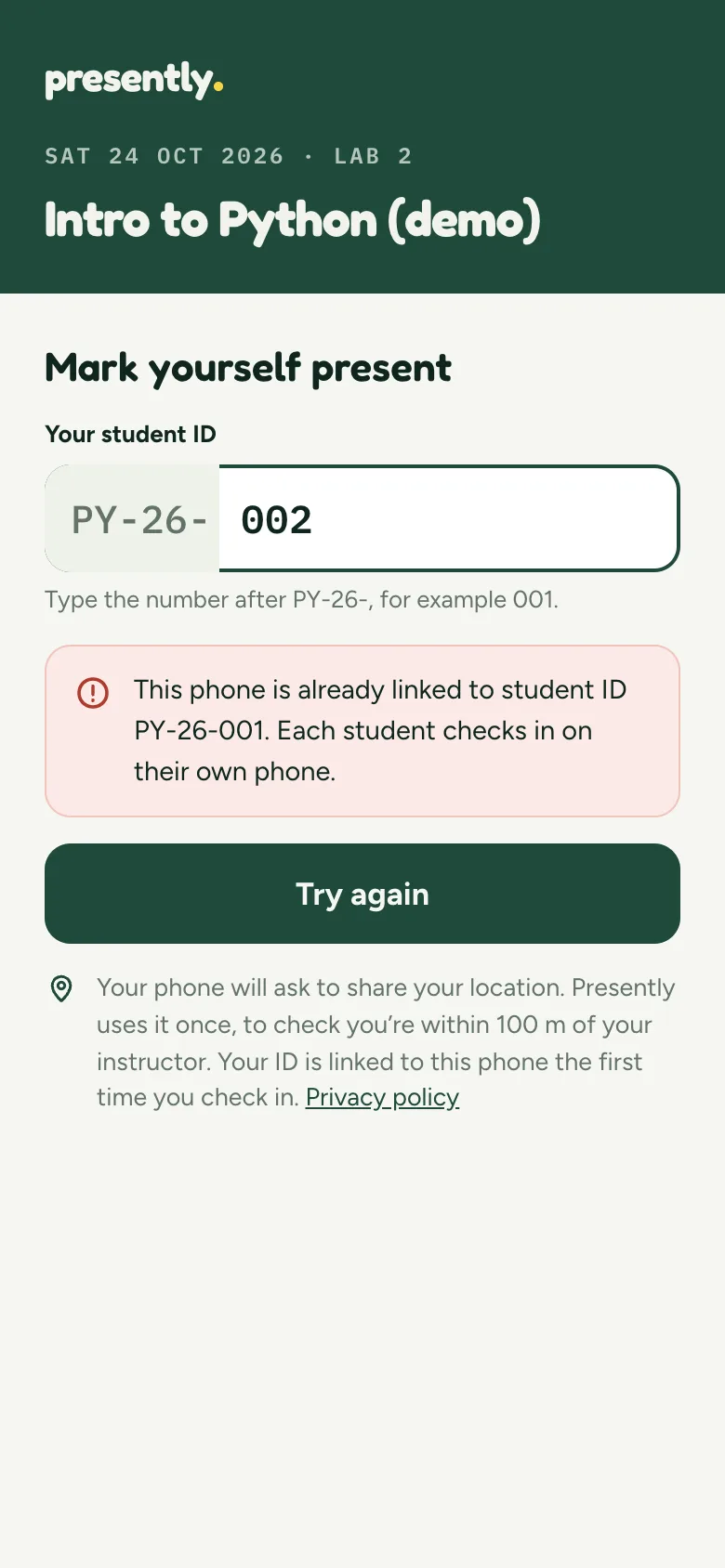
Refused: this phone is linked to PY-26-001. Bilal stays absent until he checks in on his own phone.
What you can do
Nothing, unless Bilal turns up without his phone; then mark him present by hand. The attempt appears under Turned away today on your cohort page, so you can see it happened.
Ayesha’s phone, after class
After you end the class
Ending the class closes check-in. What a student sees then depends on whether their check-in page was still open.

Page still open from earlier: tapping Check in tells her she’s already marked present.
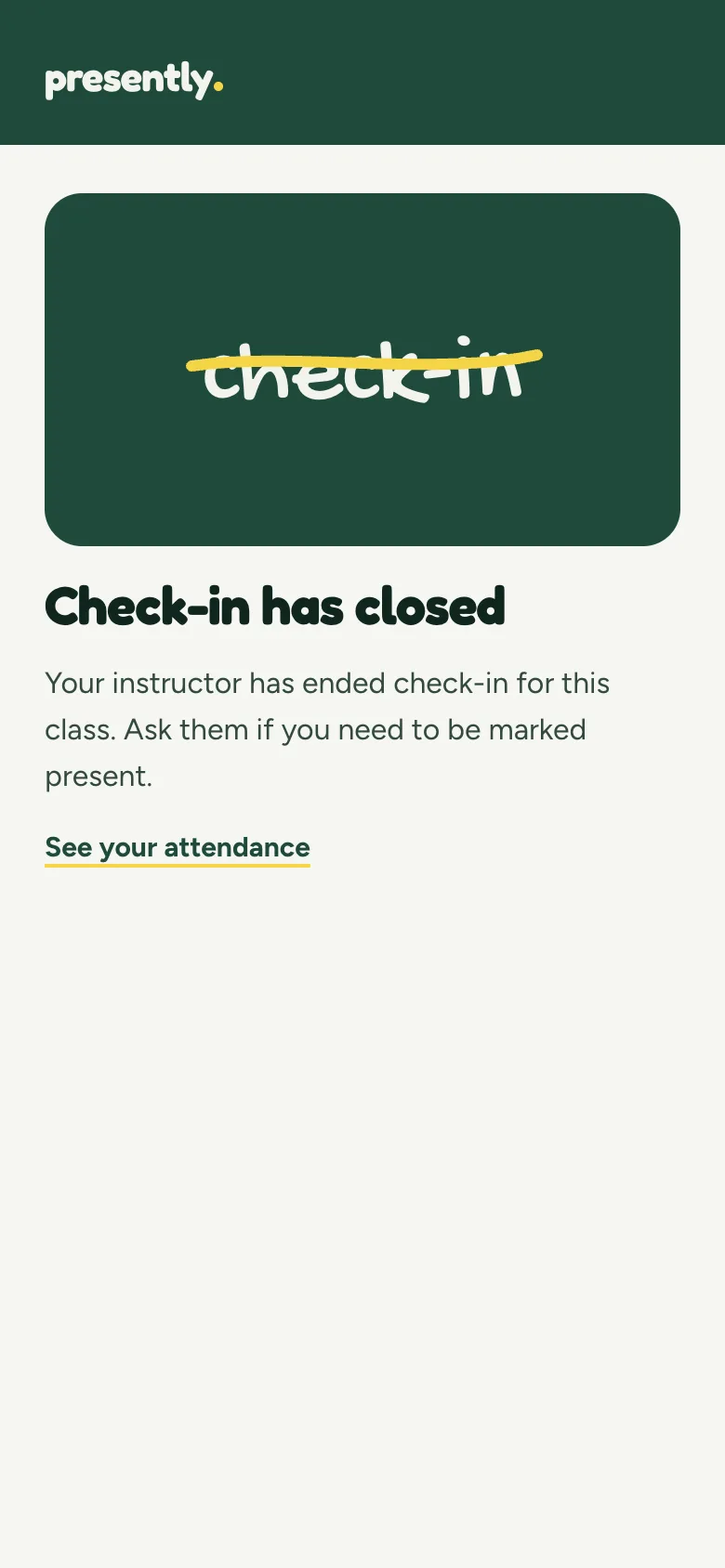
Scanning the code again: Check-in has closed, with a link to her own attendance, where today’s P shows.
What you can do
For anyone who missed check-in but was there, tap Mark present on your cohort page. You can do it any time that day.
On your side
What you see as the instructor
Your cohort page lists everyone who was refused under Turned away today, with the reason, and shows if you marked them present afterwards. Next to each student you’ll find Mark present and, once their phone is linked, Unlink. The Scan log tab in the cohort’s Google Sheet keeps every attempt:
| When | The Scan log says |
|---|---|
| A student checks in | Marked present |
| They scan again on the same phone | Already marked present |
| Their ID is typed on another phone | Turned away: ID is linked to another phone |
| Their phone is used for someone else’s ID | Turned away: phone is linked to another ID |
| You mark them present yourself | Marked present by instructor |
Questions
Does scanning twice cause any problems?
No. A student who’s already present keeps their P however many times they scan, and each scan is one more row in the Scan log.
What counts as a new phone?
Presently recognises a phone by its browser. A new phone, a different browser, or clearing the browser’s data all look new. Tap Unlink next to the student on your cohort page, and their next check-in links whatever they use now.
Can a student check in a friend who isn’t there?
Not from their own phone. They’d need the friend’s own phone, because that’s the only one linked to the friend’s ID. They’d also need to be in the room, if your class checks location.
Why can another phone see a student’s name?
The “Are you …?” question shows the name on whatever ID is typed, so a typo can’t mark the wrong student present. How students confirm it’s their ID explains it.
Is it the same at one-off sessions?
Yes, with a name and email instead of a student ID. Someone who scans again is told “You’re already checked in”, and each phone checks in one person.
Try it in your next class
Students scan a QR code from their seats, each on their own phone, and the P lands in your Google Sheet.