What’s in it
Everything a paper register does, and the counting
Dates that follow the month
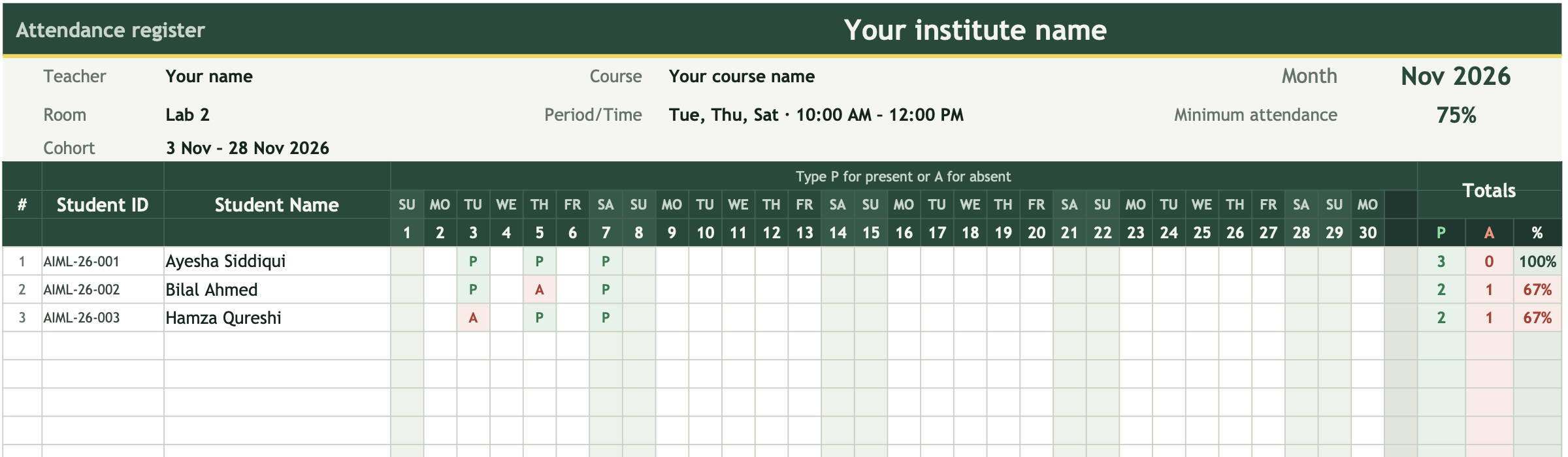
Type the first day of the month and every column fills in with its date and day. Weekends are shaded, and days past the end of the month are greyed out.
P and A in colour
P turns green and A turns red as you type. The day cells only accept P or A, so other letters can’t get in by mistake.
Totals and a percentage
Each student gets a count of P and A and their attendance percentage. They update every time you type a mark.
A flag for low attendance
Set your minimum (it starts at 75%). Anyone below it turns red, so you can talk to them before exams.
A headcount for every class
The bottom row counts how many students were present each day.
Room for 40 students
Each row has the student ID and name, and the sheet prints landscape, one page wide.
Google Sheets
Open it in Google Sheets
- Download the template.
- In Google Drive, click New, then File upload, and pick the file.
- Open it, then choose File → Save as Google Sheets.
- Fill in the details at the top, replace the sample students with yours, and start marking.
Questions
Is it free?
Yes. Download it and change it however you like.
Does it work in Excel?
Yes. It’s an Excel file, so it opens in Excel as it is. In Google Sheets, upload it to Drive and save it as a Google Sheet.
How do I use it for more than one month?
Duplicate the Register tab for each month (right-click the tab, then Duplicate), clear the marks and change the Month box.
Can my students fill it in themselves?
This file is for filling in by hand. Presently is the version your students fill in: they scan a QR code in class, and Presently writes their P into a Google Sheet laid out like this one.
Or skip the typing
With Presently, students scan a QR code from their seats and the P lands in a register like this one, in your own Google Drive.